

Whitelisting and browser settings
Supported browsers, whitelisting, and known compatibility considerations.
The DekkoDEMS web platform requires whitelisting in corporate network/device environments where strict firewall and filtering systems may be in operation. The whitelisting policies detailed below are required to allow the platform to be accessed and perform reliably.
Network whitelisting policies
| Function | Policy |
|---|---|
| File sharing | Whitelist all subdomains of DekkoSecure: *.dekko.io |
| Email notifications | Email notifications (e.g., files shared, document signed, video conference invite, etc.) are sent from noreply@dekko.io |
Browser policies
| Function | Policy |
|---|---|
| File sharing | Allow automatic downloads (required for downloading multiple files simultaneously) Disable “Memory saver” (Chrome) or “Turn on efficiency mode when connected to power” (Edge, laptops only) Exempt fusion.dekko.io from tab sleeping |
| Authentication | Allow pop-ups and redirects (required for Entra ID SSO) |
Performance management in Chrome and Edge
Google Chrome and Microsoft Edge may put your DekkoSecure tab to sleep and throttle performance during long uploads and downloads. While this helps conserve battery, it can significantly slow or even halt transfers, preventing uploads or downloads from completing.
To prevent this issue, disable performance management features and add the DekkoSecure app as an exception in your browser’s performance settings.
If you’re using a corporate device and can’t change browser settings, please contact your IT administrator for assistance.
Chrome:
Open a new tab and enter chrome://settings/performance, then press enter on your keyboard – the performance settings page will open
Ensure the Energy saver option is OFF

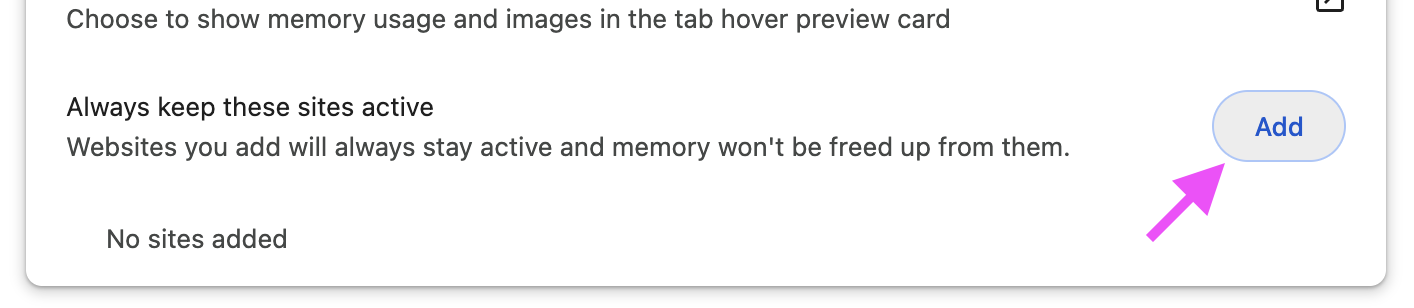
Locate the Always keep these sites active option and press (Add)
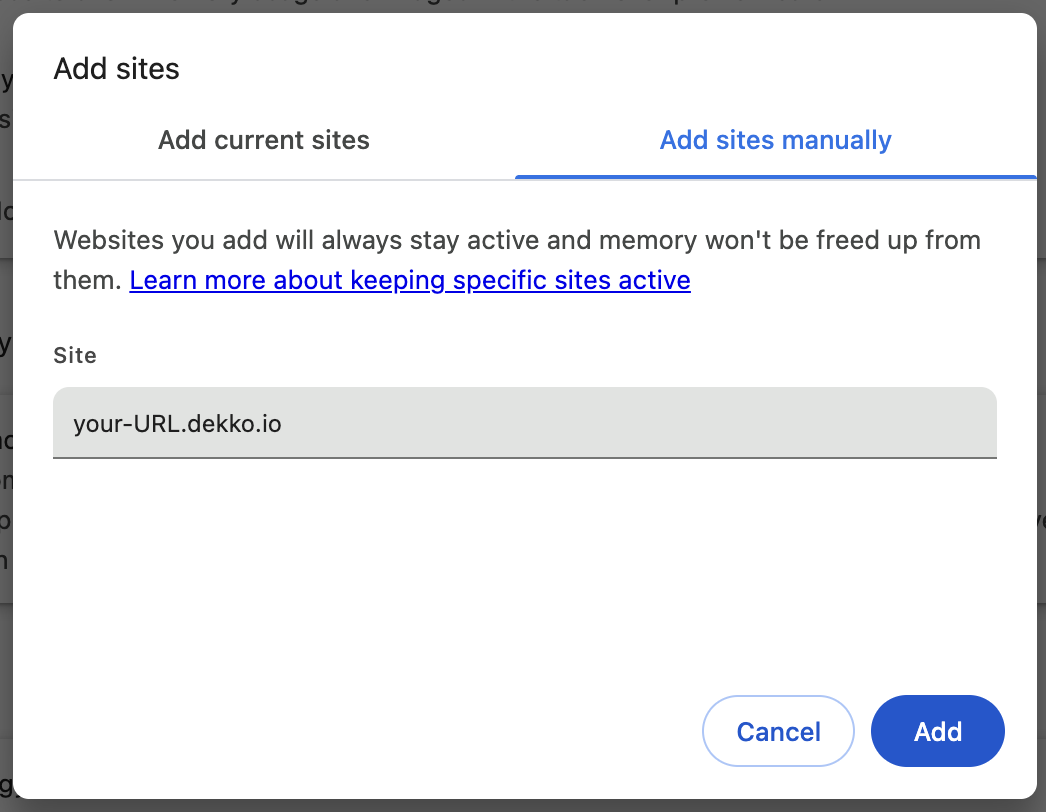
In the pop-up, enter fusion.dekko.io then click (Add)
Done! The changes should take effect immediately, but we recommend restarting your browser to ensure the settings are fully applied.
Edge:
Open a new tab and enter edge://settings/system/managePerformance, then press enter on your keyboard – the performance settings page will open.
(Laptops only) Ensure the Turn on efficiency mode when connected to power option is OFF

Locate the Never put these sites to sleep option and press [Add]

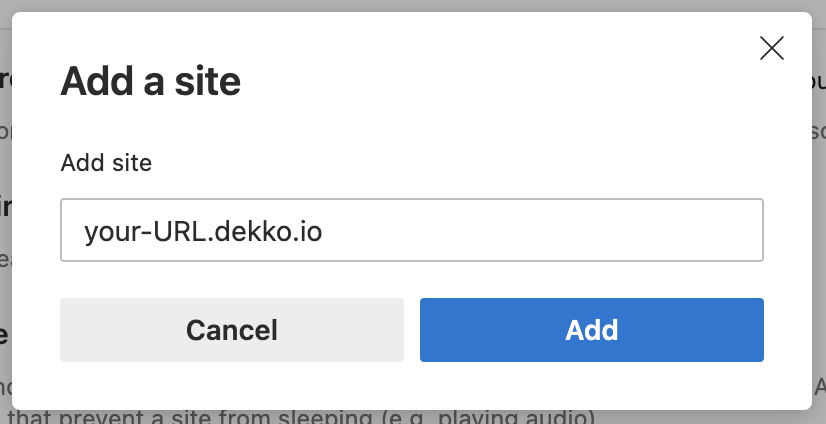
In the pop-up, enter fusion.dekko.io then click (Add)
Done! The changes should take effect immediately, but we recommend restarting your browser to ensure the settings are fully applied.
FAQ
Why is a wildcard address required?
For service reliability, the DekkoSecure platform utilises load balancers and multiple dynamic components across various cloud infrastructure zones, making it impractical to define a single subdomain. Therefore, we recommend whitelisting *.dekko.io. If your network settings do not support wildcard whitelisting, we can provide a list of specific addresses to whitelist. However, please note that these addresses may change without notice.
Can you provide a single/static IP address for whitelisting?
For infrastructure failover and DDoS protection, DekkoSecure platform’s IP is not static and changes over time, so we cannot provide a single IP. The IP range for the platform is over 100k addresses.