

DekkoDrive: Interface and Filters
A guide to the DekkoDrive desktop interface, including case views, navigation, and content filters.
View Profiles and Filters
View profiles and filters work in the same way as the web application.
Basic Search
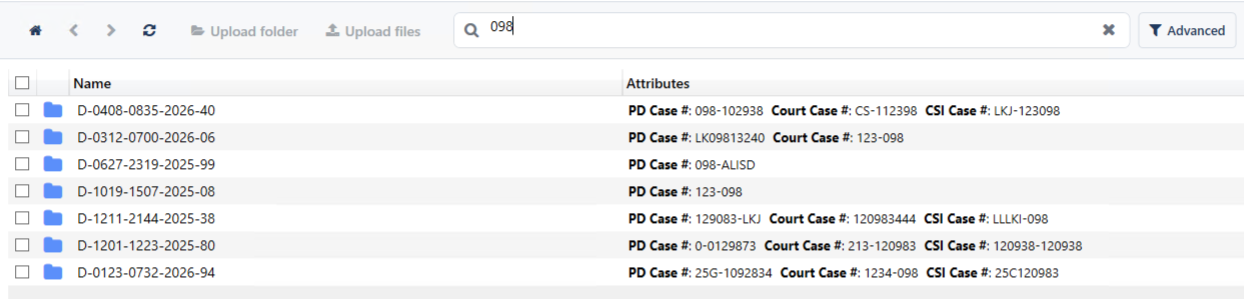
Basic search finds your search term across all attributes. Type the search term into the bar and then press Enter on your keyboard:
Advanced search
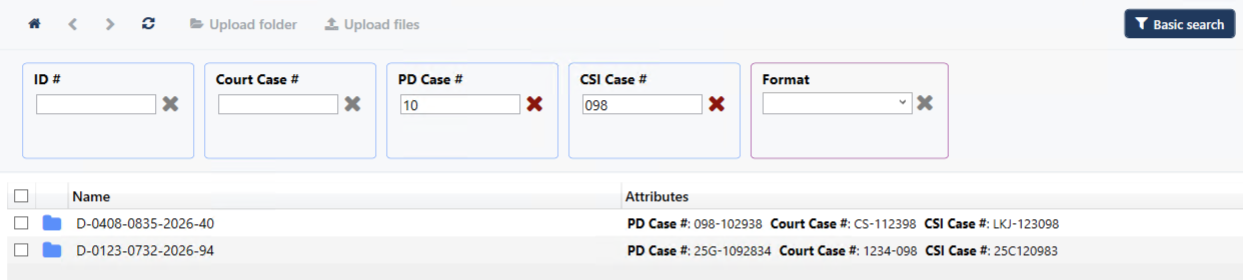
Click on the Advanced button next to the search bar to show all filter options for your view profile.
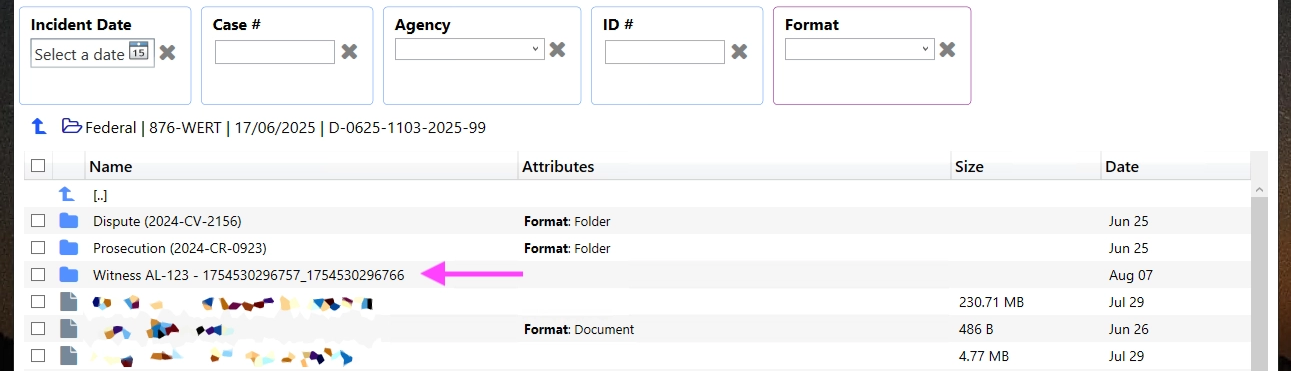
Case filters are displayed in blue boxes, and Content filters are displayed in pink boxes:

Apply filters by entering dates, text, or making a selection from a dropdown filter:
Case Navigation
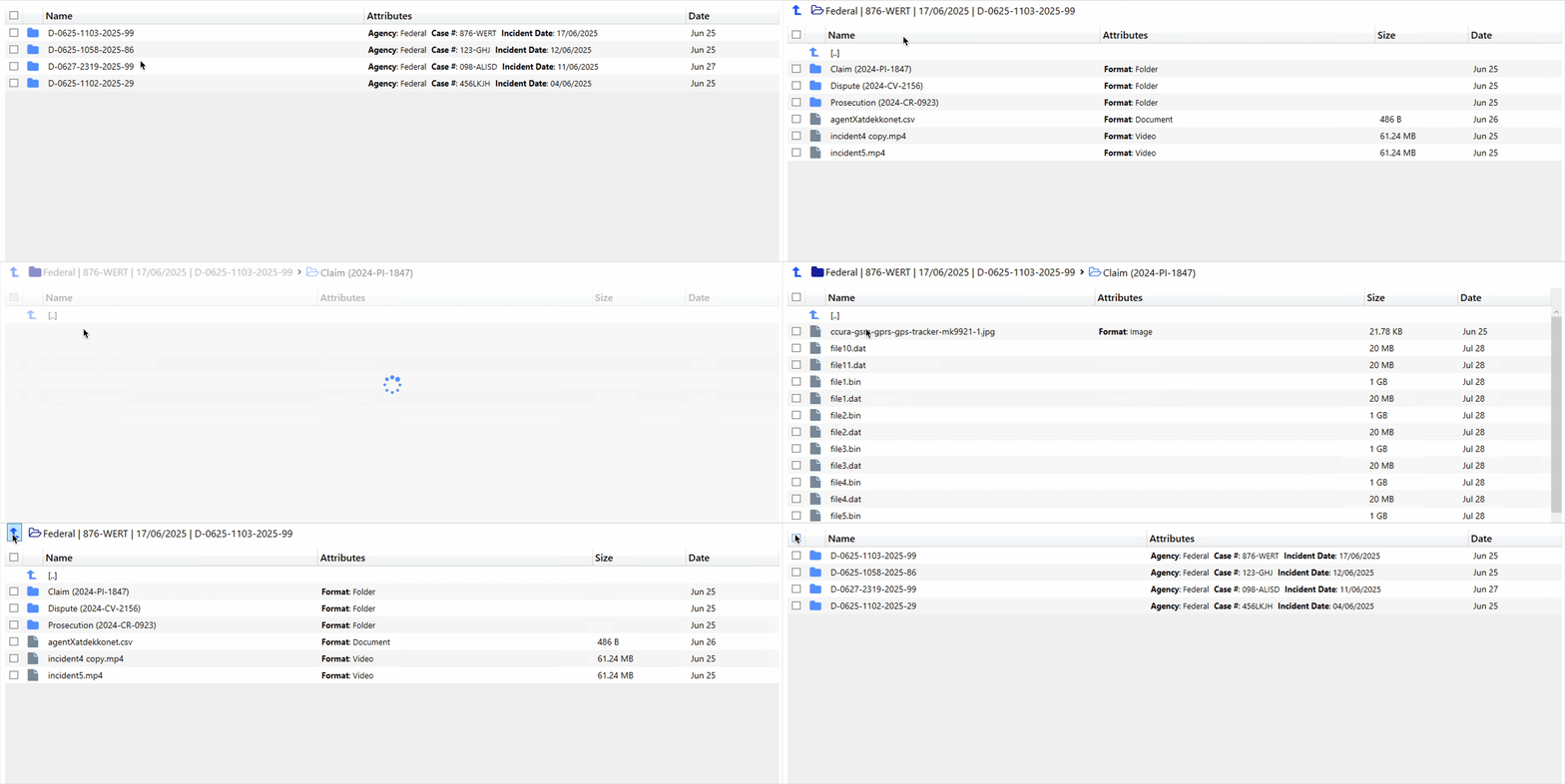
Double-click on a case (or case sub-folders) to open them:
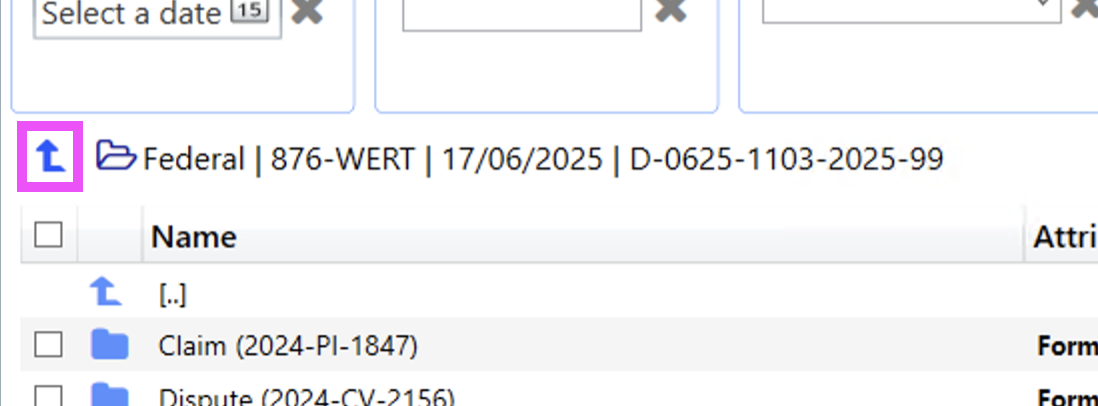
Click on the ↑ button to go up a level:
Public Submissions
Submission folders appear in DekkoDrive for fast download:
Was this article helpful?
Didn't find what you need?Ask the AI assistant about this topic, or contact support.
Request support