Web: Case Attribute Filters and Search
A guide to the DekkoDEMS web interface, including layout, navigation, and how to use case filters.
Introduction
The DekkoDEMS application organises material by “Case”. A case has attributes that are customised for your organisation, and are configured to manage the many different ways that digital evidence or supporting legal data should be identified. See the Administration Guide Policies article to see how case attributes are configured.
When you log in, you will see all case folders that are accessible to you, either as an owner, or as a recipient of a case folder that has been created by another DekkoDEMS user. For groups of organisations that handle data with a broad array of attribution requirements, “view profiles” are set up to show a limited number of attributes per-organisation.
The home view of the case browser allows you to:
- Review and access case material
- Update case attributes
- Locate and group case content using filters
- Add users to your organisation
- Create and share new cases
- Locate and group cases using filters
- Upload data to case folders
The Attributes are set up in the following categories:
- Text
- Selection (dropdown)
- Number
- User
- Date
View Profiles
The view profiles configured for your organisation appear at the top of the interface. Click them to switch between profiles and check the associated case attributes:

Using the Basic Filter
The basic filter searches across all attributes for your selected view profile.

Enter your search term and press Enter on your keyboard. Results will be displayed:

For more targeted results, use the Advanced filter across multiple attributes to narrow your search.
Using Advanced Filters
First, click on the Advanced button next to the search bar to display all attributes for your selected view profile.

Click on a filter field in the Advanced panel and enter the detail you are searching for. Matching cases will appear in the case browser.
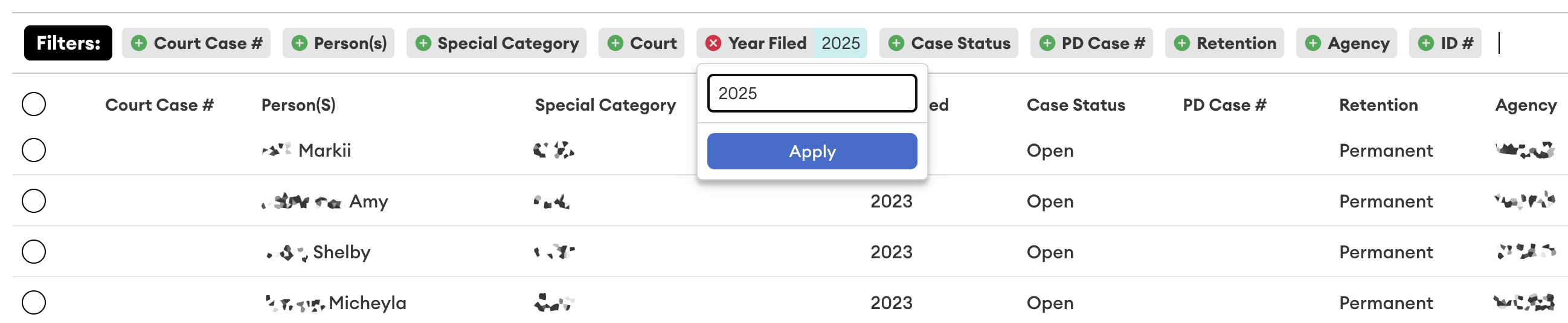
Combinations of filters can also be used for highly specific case search:

Grouping can be applied to any attribute:
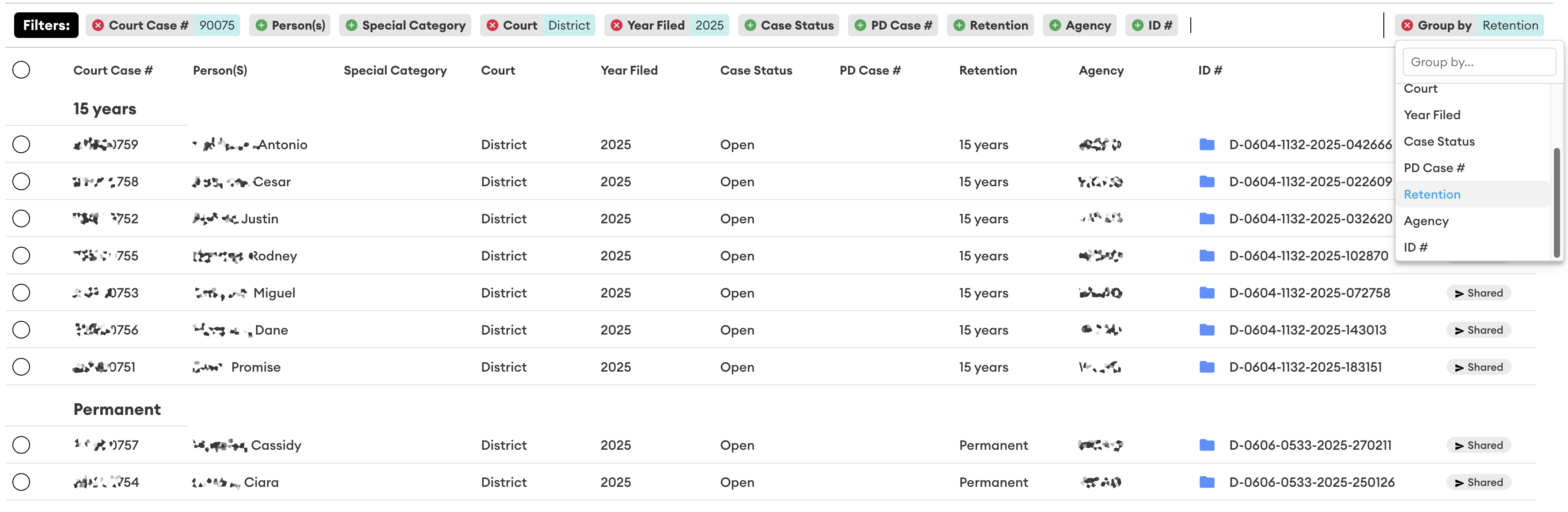
To remove a filter, click on the red (×) against the filter element:

Content Search
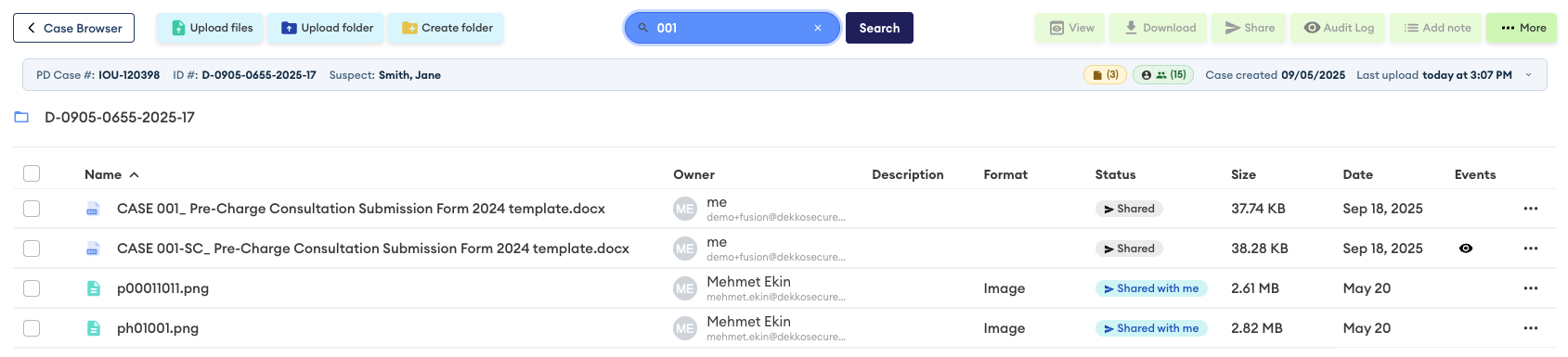
Search is based on file names displayed in the current case and can be used in list view and gallery view. Enter at least three characters to perform a search: