

Deleting and Restoring Content
How to delete files and folders from a case, and how to view and restore previously deleted content.
Delete Cases and Content
Deletion can only be performed by users with the Tenancy Manager role. If you need to delete content and do not possess this role, please make a request to your DekkoDEMS administrator.
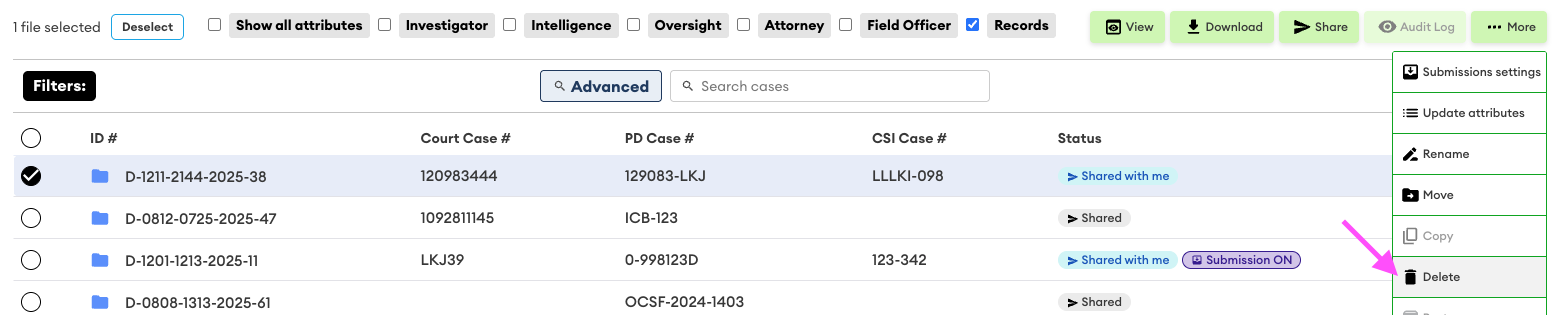
To delete a case:
- Select the case
- Open the ⋯ More dropdown
- Click Delete
- Confirm you wish to delete the content by clicking Ok
To delete content within a case:
- Open the case
- Select the content
- Open the ⋯ More dropdown
- Click Delete
- Confirm you wish to delete the content by clicking Ok
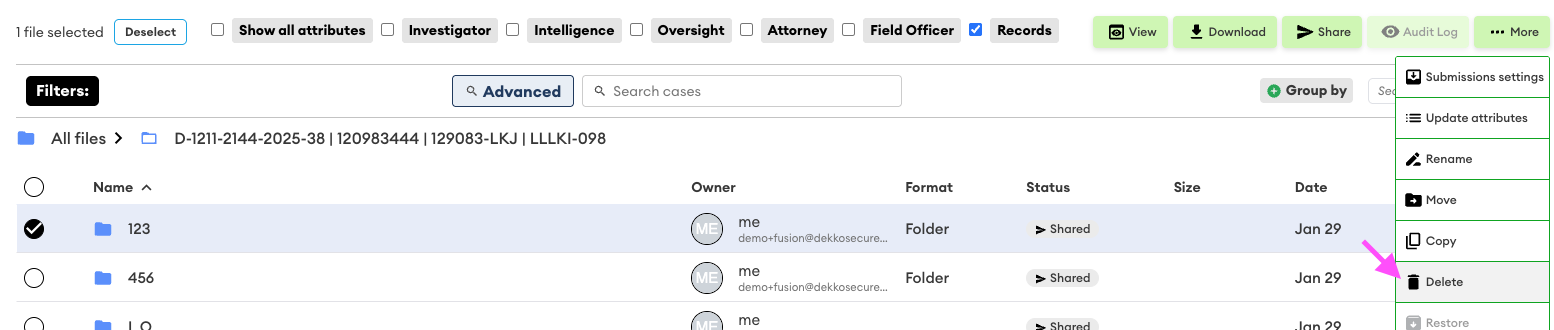
Deleted cases and content will be removed from view following confirmation.
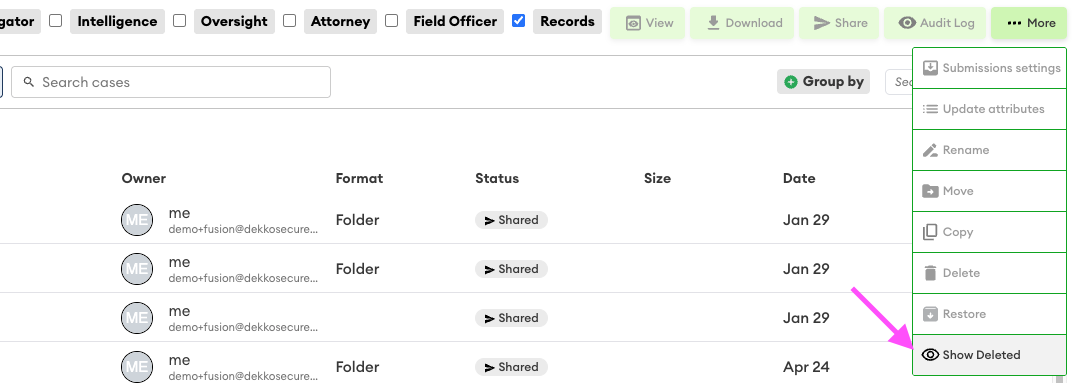
To review deleted content:
- Open the ⋯ More dropdown
- Select Show Deleted
Restore Cases and Content
Before attempting to restore deleted cases or content, ensure the Show Deleted option is enabled (see above).
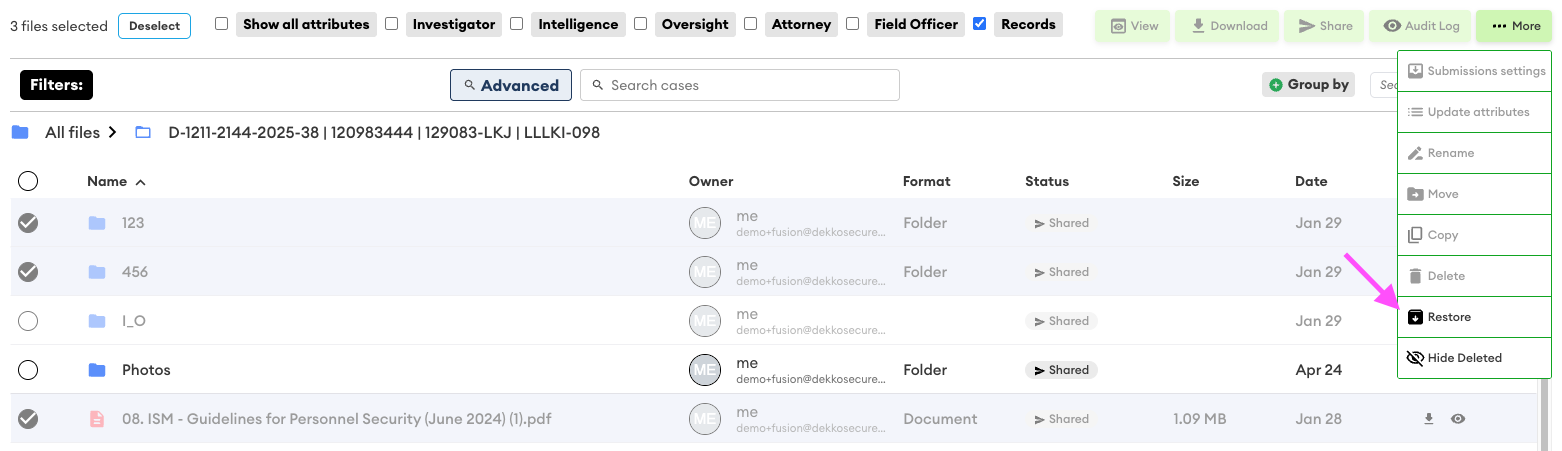
To restore deleted content:
- Find the deleted content you wish to restore (see above) and select the content
- Open the ⋯ More dropdown
- Select Restore
- Confirm you wish to restore the content by clicking Ok
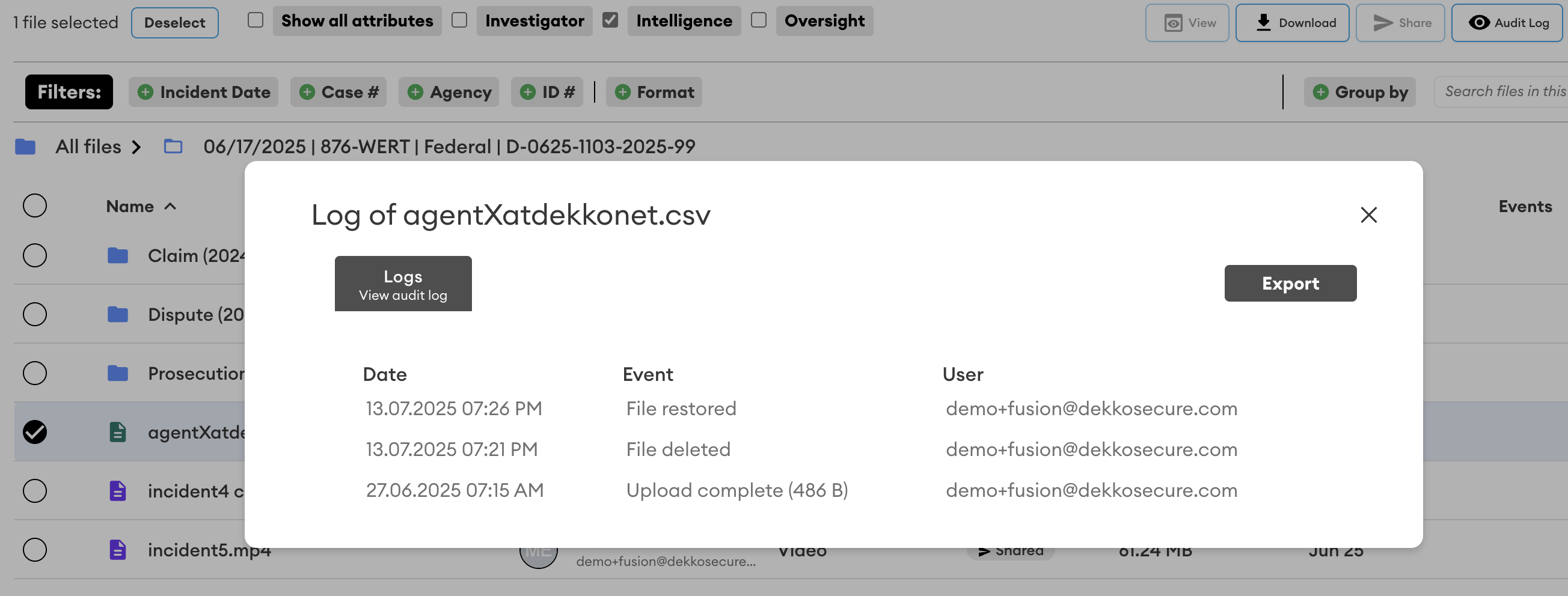
Delete and Restore Audit
Delete and restore events are always displayed in file audit logs:
Was this article helpful?
Didn't find what you need?Ask the AI assistant about this topic, or contact support.
Request support