Case Notes

How to add and review notes added to a case.

Case notes can be added to and managed by case creators and shared users with “Manager” and “Full permissions”.

Adding notes to a case

There are two ways to add notes to a case.

  1. Select the case and then click on Add notes:

    Case list search results for "IOU" with one case selected; the Add note button in the top toolbar is highlighted with a pink arrow.

  2. If the case already has notes:

    1. Click on the Notes tag in the Status column against the case and then click on Add note.

      Search results for "IOU" showing one case, with the Status column's "Notes" tag highlighted by a pink arrow.

    2. Open the case and then click on the note counter in the case summary:

      Case summary bar with an arrow pointing to the "Case notes: 3" counter, next to Case created, Last upload, and Export buttons.

Add your note by entering a date, time (optional) and note body, then click Save Note:
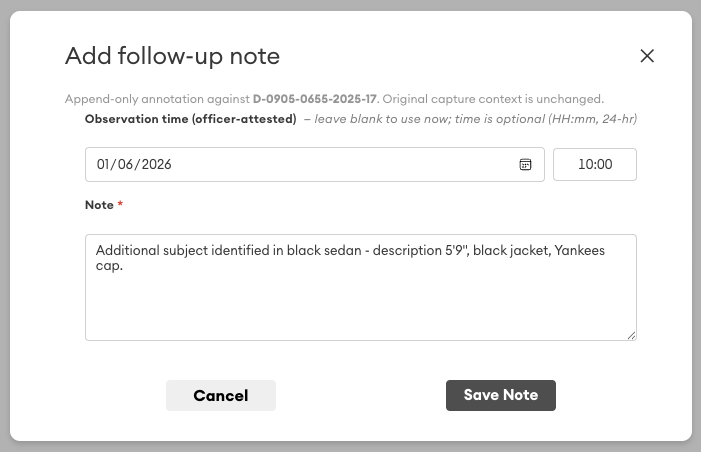
Dialog titled "Add follow-up note" showing an observation date and time fields (optional) and a Note text box, with Cancel and Save Note buttons.

Review and Export Case Notes

  1. Click on the Notes tag in the Status column against the case:

    Search results table showing case IOU-120398 with its Status column displaying a "Shared" tag and a "Notes" tag, which is highlighted by a pink arrow.

  2. Open the case and then click on the note counter in the case summary:

    Case summary bar with a pink arrow pointing to the "Case notes: 3" counter, next to the case created date and export buttons.

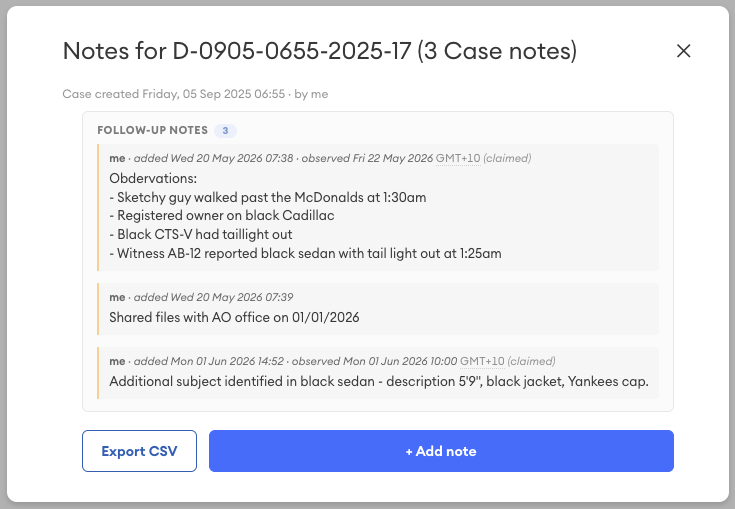
The case notes will be listed:

Dialog titled "Notes for D-0905-0655-2025-17 (3 Case notes)" listing three follow-up notes, with Export CSV and + Add note buttons at the bottom.

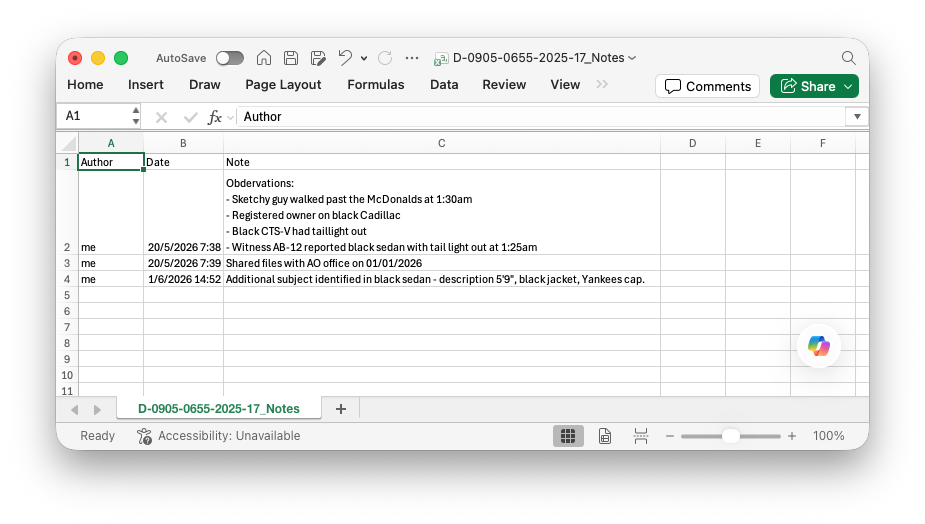
Click on Export CSV to create a CSV file containing a report for the case notes:
Was this article helpful?
Didn't find what you need?Ask the AI assistant about this topic, or contact support.
Request support