Web: Evidence Views
A guide on using the different evidence presentation modes.
When reviewing a case, there are three different modes that present material:

List View
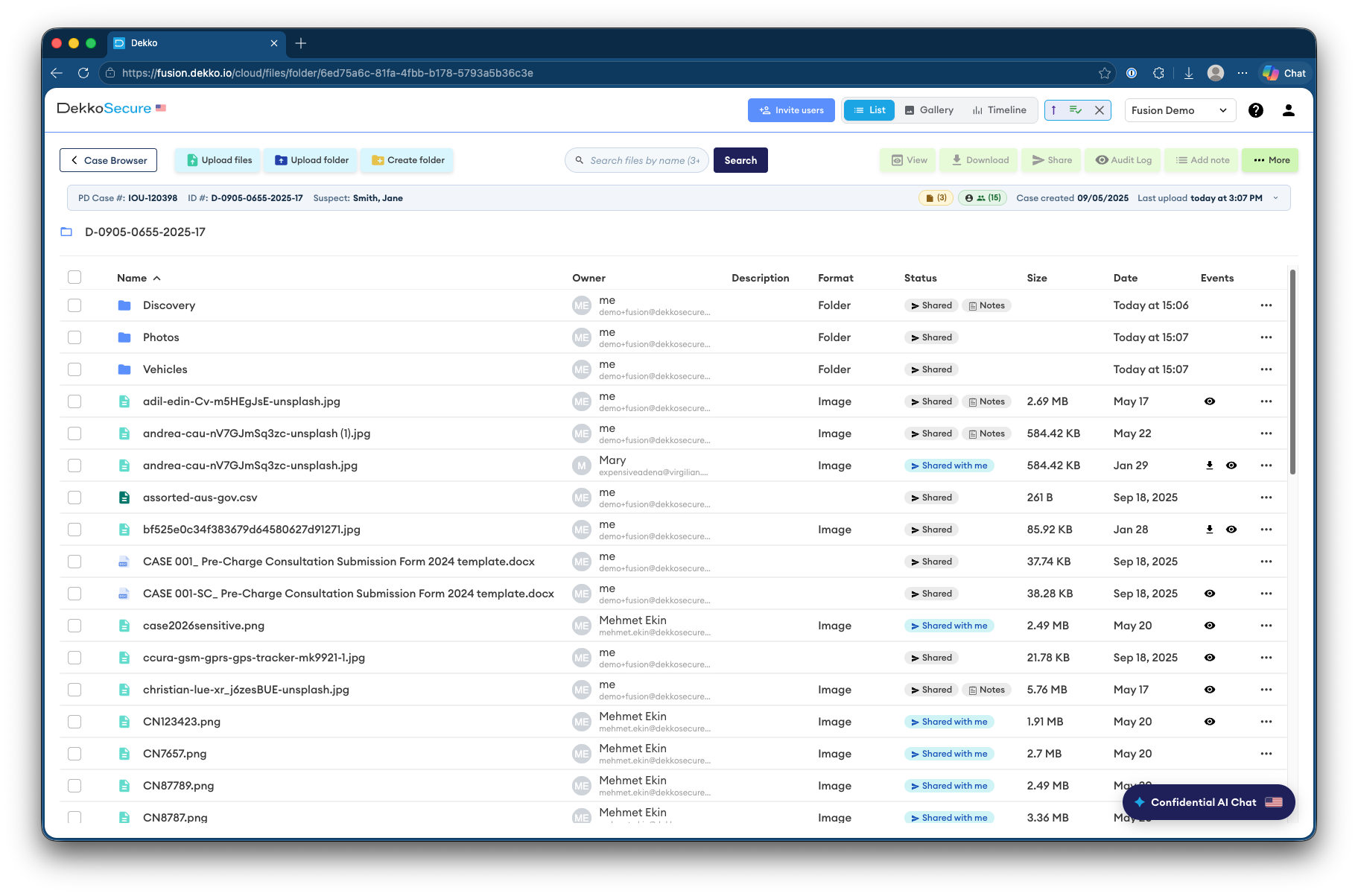
The list view is most useful for administrative operations such as uploading, downloading and managing the sharing of case material. Folders will always be shown at the top of the material listing, with individual files underneath.
Tip: place your mouse over an image file to show a thumbnail preview:

Gallery View
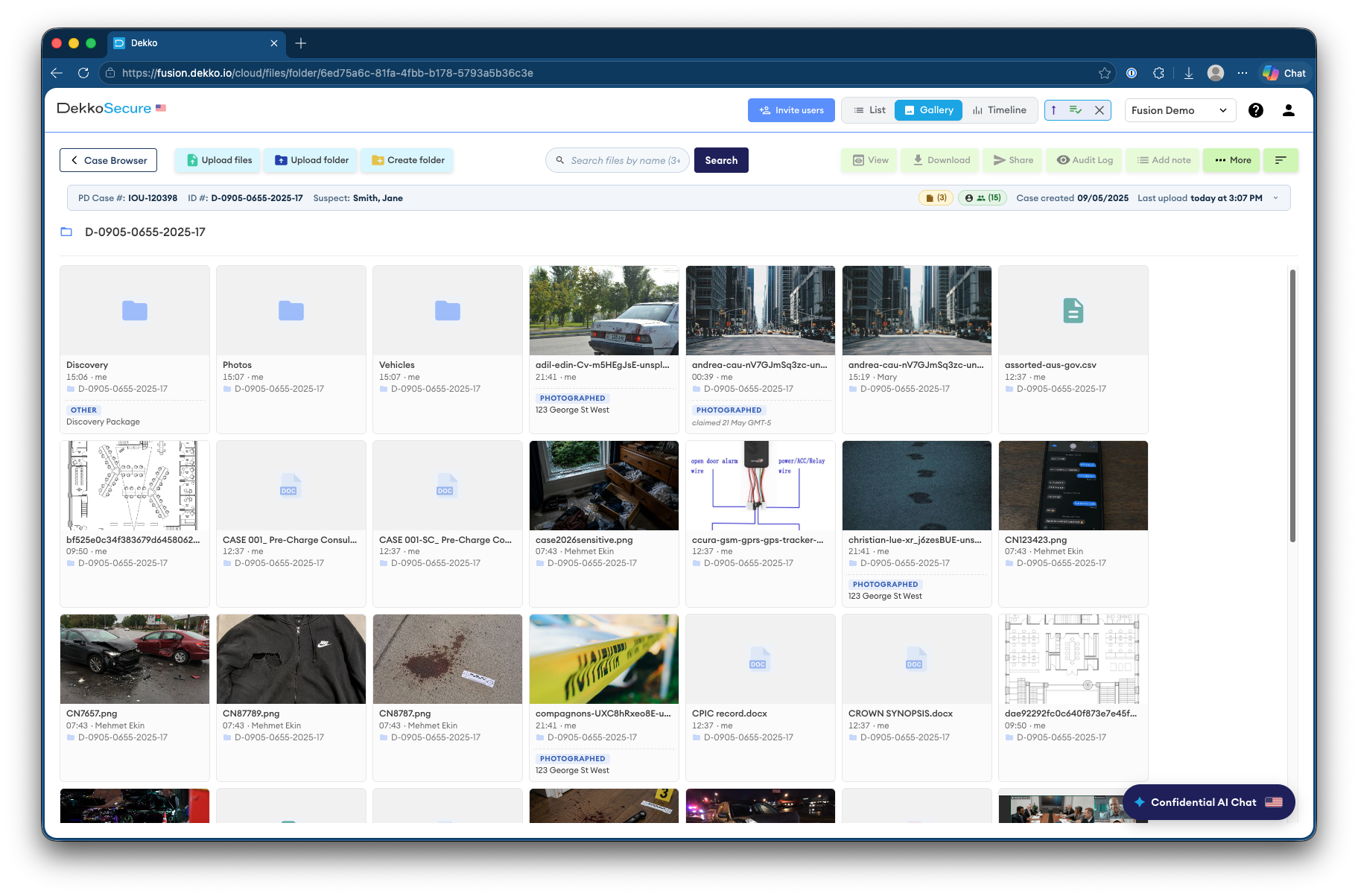
The gallery view is most useful for reviewing multimedia. Evidence context notes added to an upload are also displayed in each item’s gallery box. Like the list view, folders will always be shown at the top of the material listing, with individual files underneath.
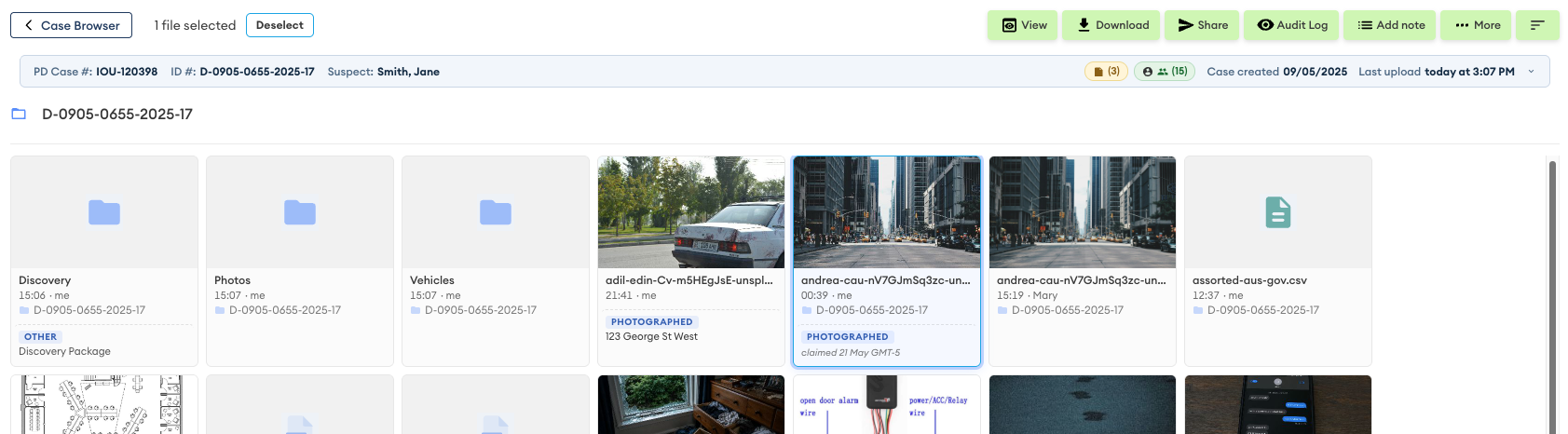
Tip: click on an item to select it and activate the action buttons:
Timeline View
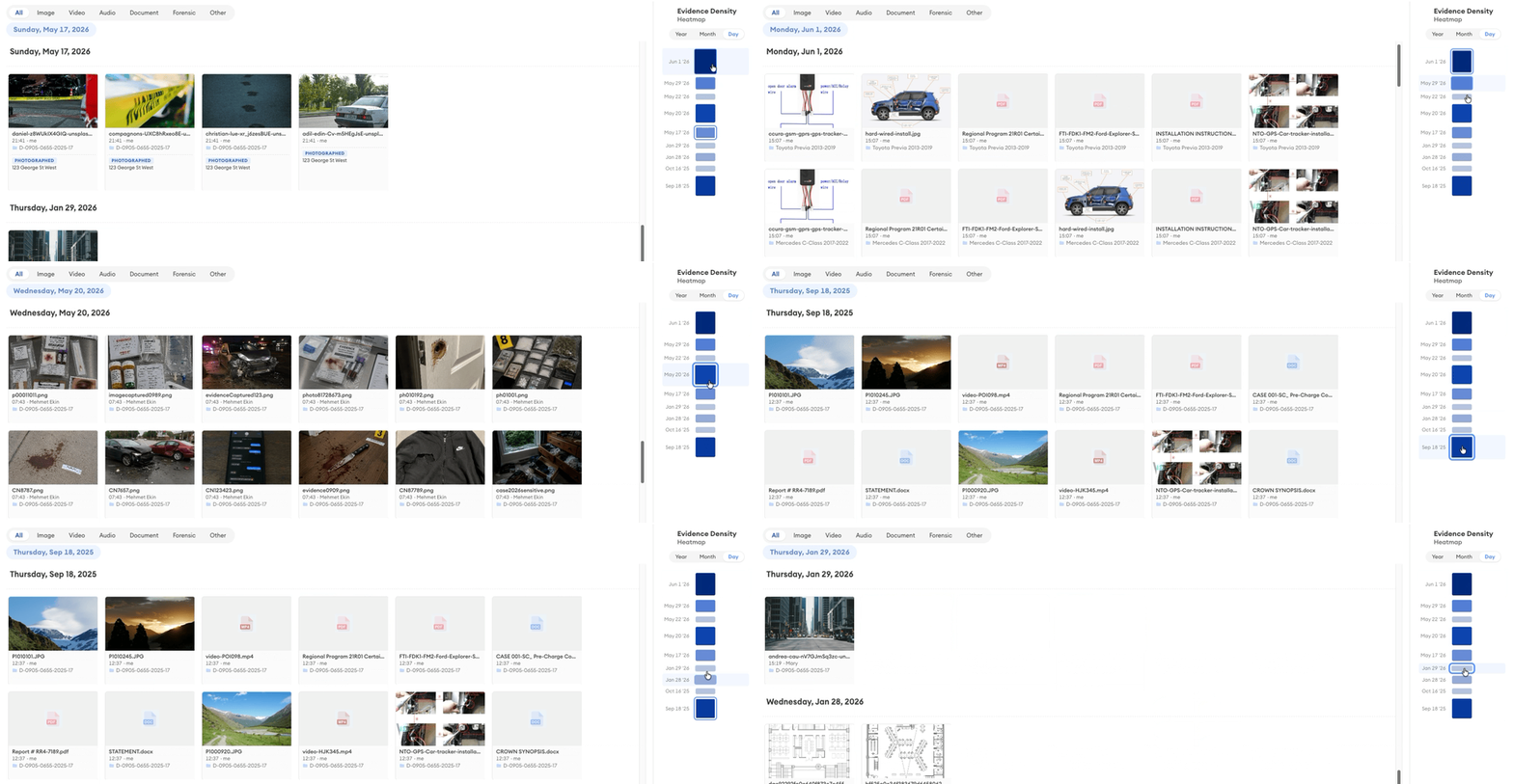
The timeline view is most useful for reviewing case material based on its upload date. This view features filtering based on file type category and an “Evidence Density” map. The density map shows granularity by year, month and day, and a darker box indicates more files.
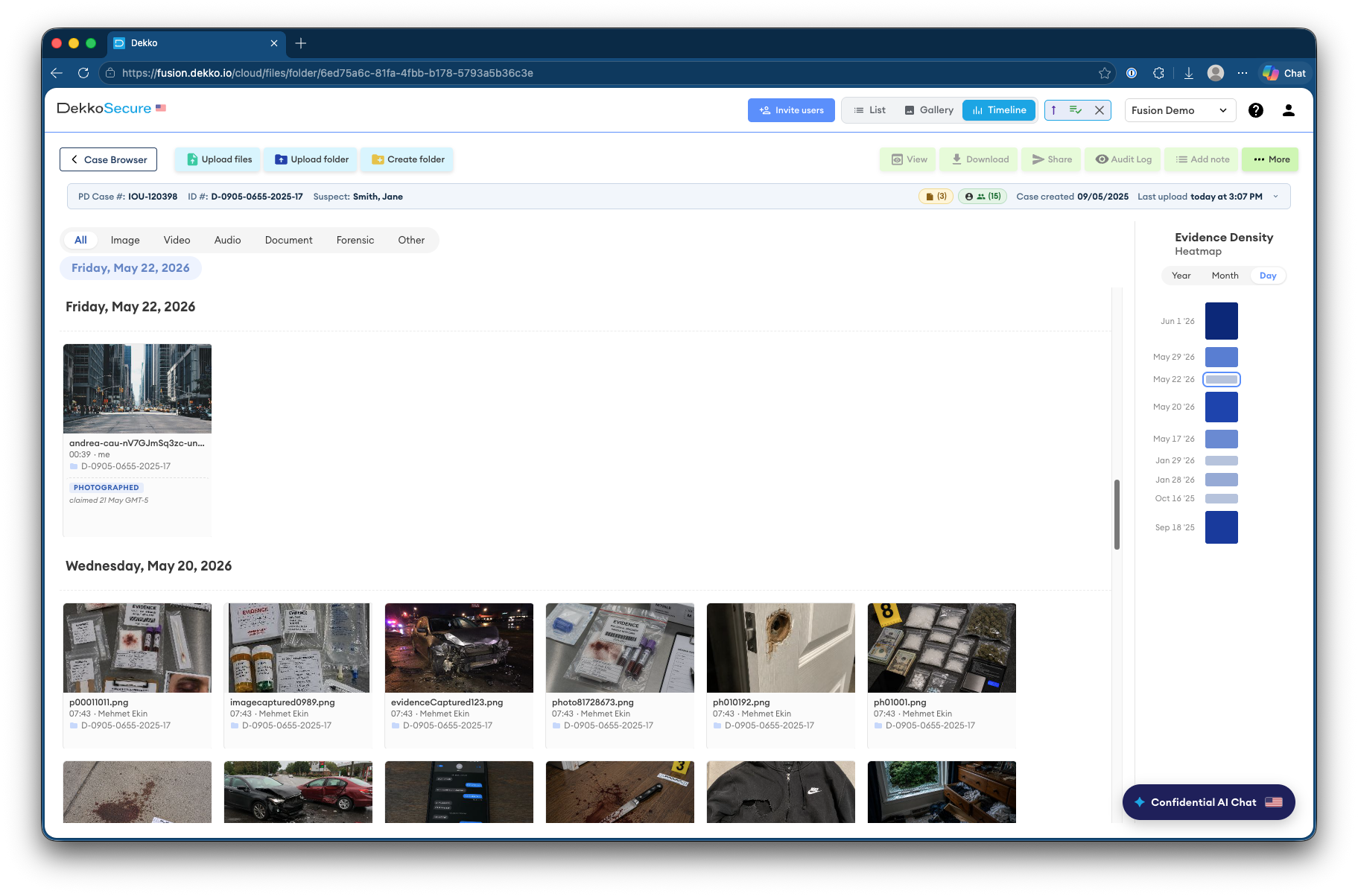
Tip: click on different periods in the density map to jump around the evidence timeline: