DekkoDrive: Uploading and Downloading
How to upload files to DekkoDEMS and download content to your local device using DekkoDrive.
Uploading Content
DekkoDrive will automatically share content uploaded to cases and case sub-folders that are shared. Use the sharing controls in the web application to manage access.
Uploading into a case folder
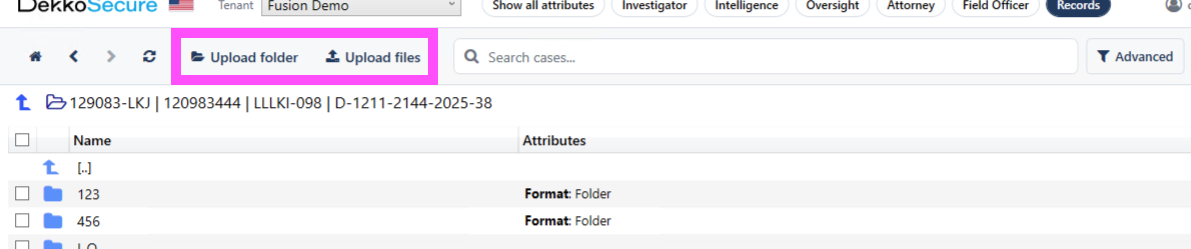
Open the case using the case browser and then click on Upload folder or Upload files, depending on what you need to add to the case:
Uploading into a case sub-folder
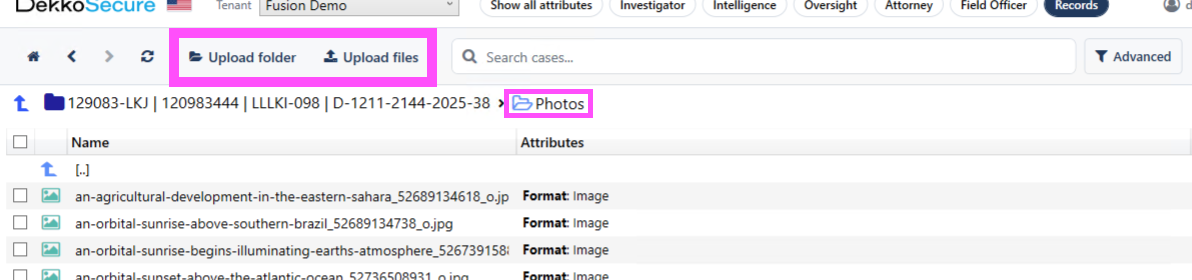
Open the case using the case browser, then open the sub-folder by double-clicking on it. Click on Upload folder or Upload files, depending on what you need to add to the case:
Upload Progress
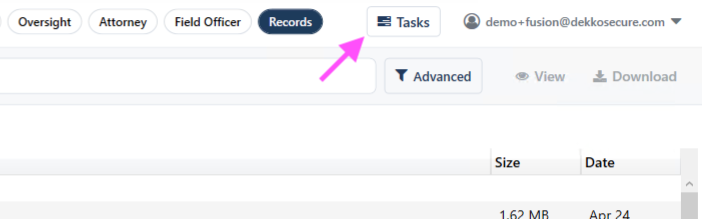
Click the progress manager button [≡ Tasks] to open the upload progress manager:
Downloading content
Download an entire case
Select the case from the case browser view and then click Download:

Before downloads start you will be prompted to select a download location.
Download content inside a case
Open the case, select the contained content and then click Download:

Before downloads start you will be prompted to select a download location.
Download Progress
Click the progress manager button [⇅≡] to open the download progress manager:
Click on the [➚] button to open the downloaded content location: