

DekkoDrive: Install and Uninstall
How to download, sign in, and configure the DekkoDrive desktop sync application.
DekkoDrive is a supercharged upload and download tool for the DekkoDEMS platform. It’s a lightweight executable that doesn’t require installation - just open the executable file and log in with your DekkoDEMS account.
Each time you launch DekkoDrive, it will show you the latest cases available to your account. From there, you can quickly upload new files or folders, or download existing content from your active cases.
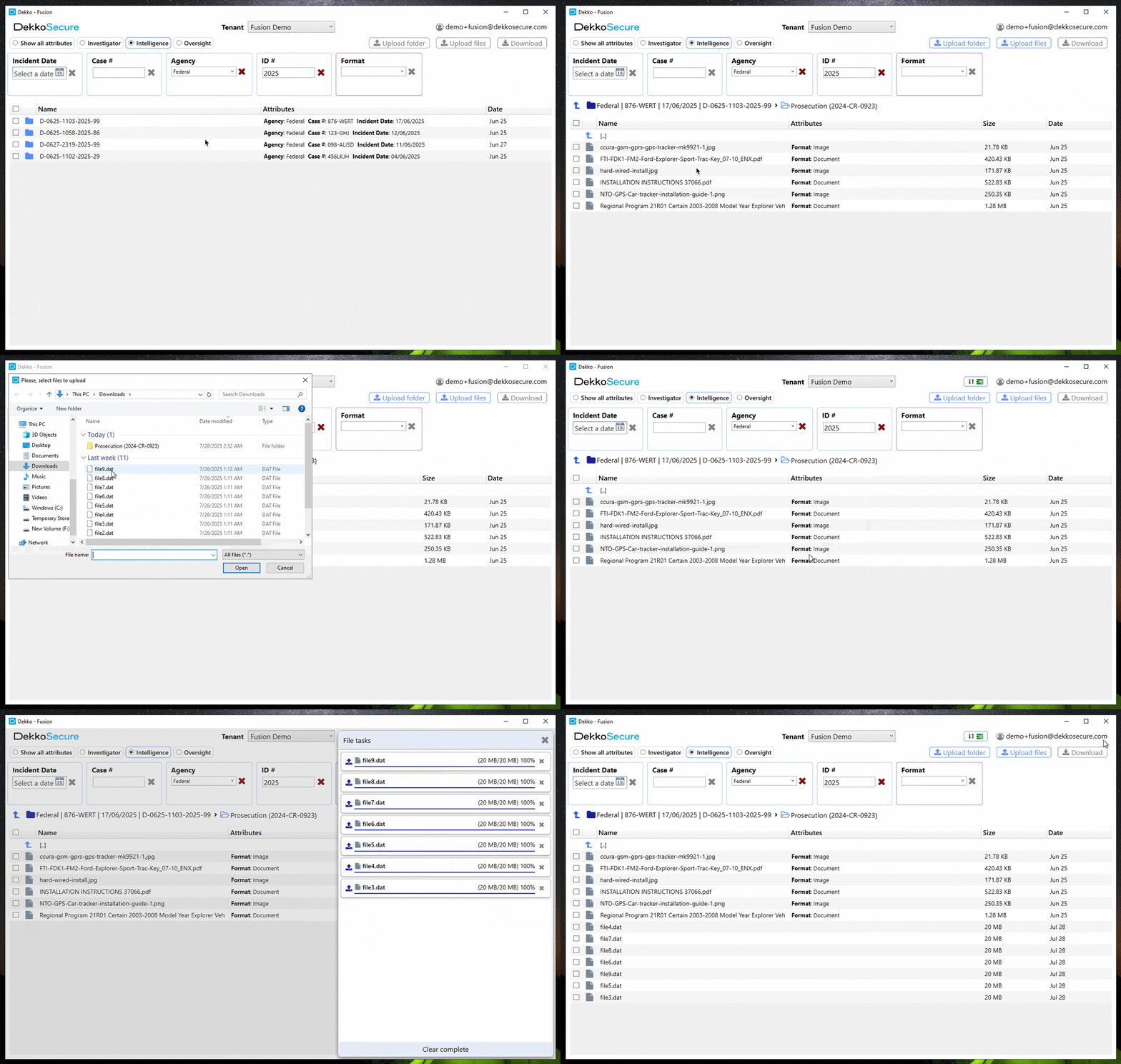
What DekkoDrive can do:
- Display cases that are accessible to you (with filters and view profiles)
- Upload folders and files into cases (or into folders that are inside cases)
- Download content from cases
- View multimedia file types such as images, MP3 audio and MP4 video
Use the web application in your browser (fusion.dekko.io) for administrative tasks such as:
- Creating and sharing cases and content
- Copying/moving content
- Deleting/restoring content
- Managing users/groups
- Managing policies
Download DekkoDrive
Download the DekkoDrive installer ZIP.
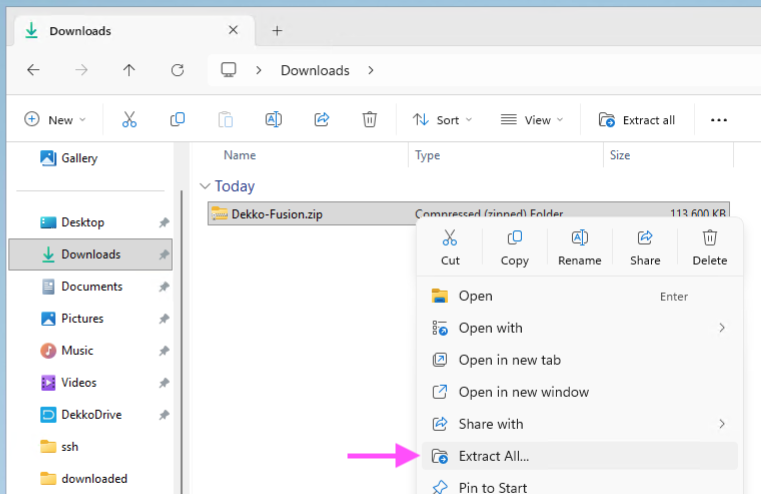
Locate the ZIP file on your computer (e.g. your Downloads folder). Right-click Dekko-Fusion.zip and choose Extract All:
Ensure the Show extracted files option is ticked and set the extraction destination to
C:\ProgramData\DekkoFusionDrive, then click Extract: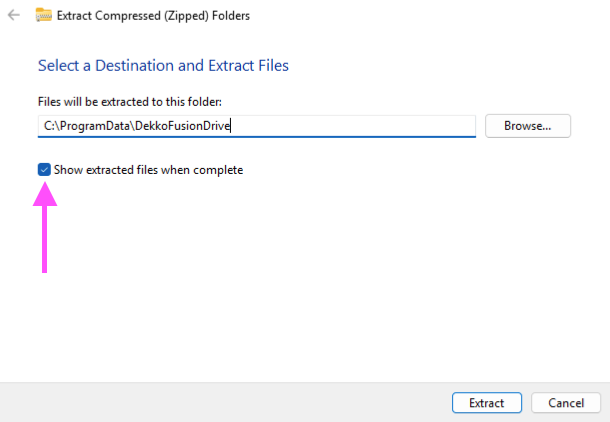
*Note: The location can be set to anywhere based on your preference, but \ProgramData\ is recommended
The destination folder will open. Drag and pin Dekko-Fusion.exe to your task bar:
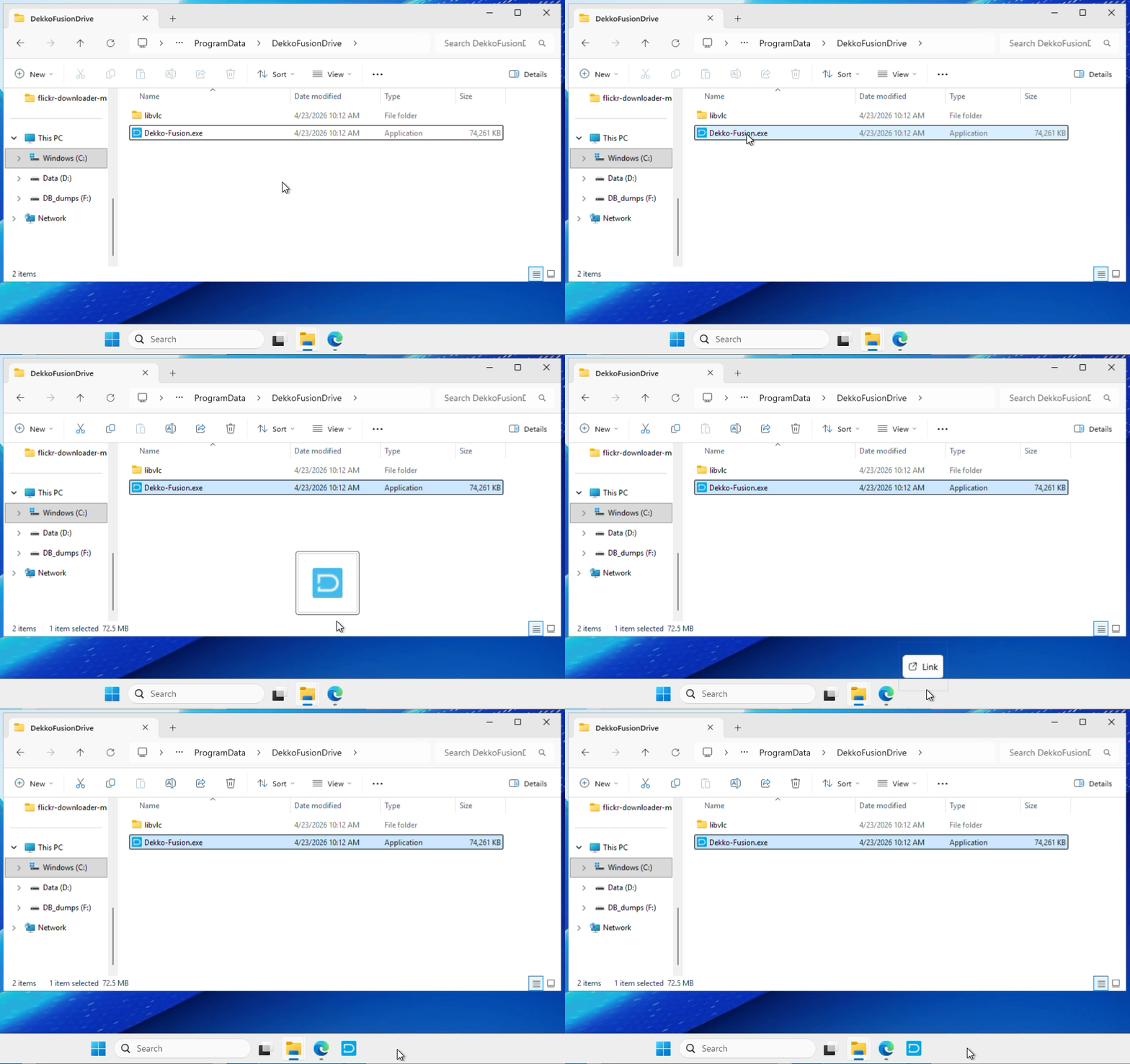
Run the app by single-clicking it in your task bar. Please wait a few moments for the app to launch for the first time!
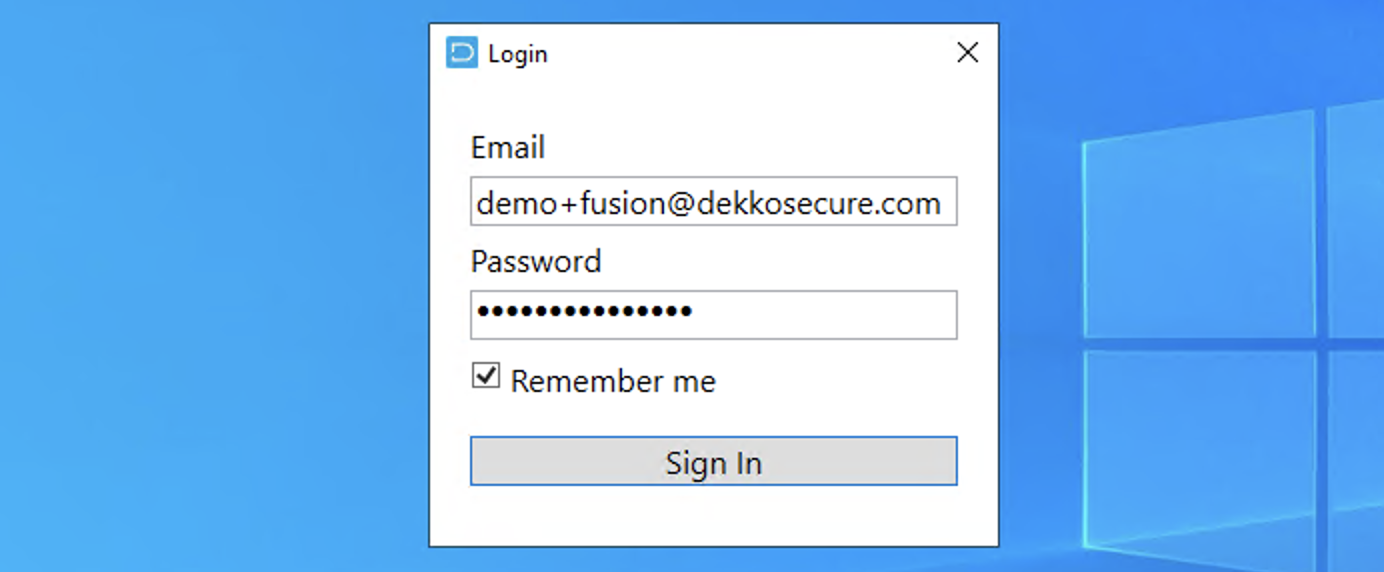
Enter your DekkoDEMS account credentials (if you tick Remember me, DekkoDrive will store your credentials for the next time you run the app):
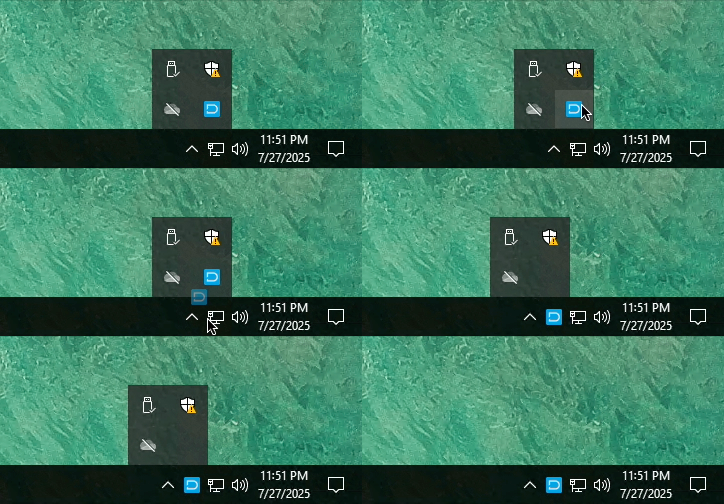
Pin the DekkoDrive menu tray item to your task bar:
Running DekkoDrive
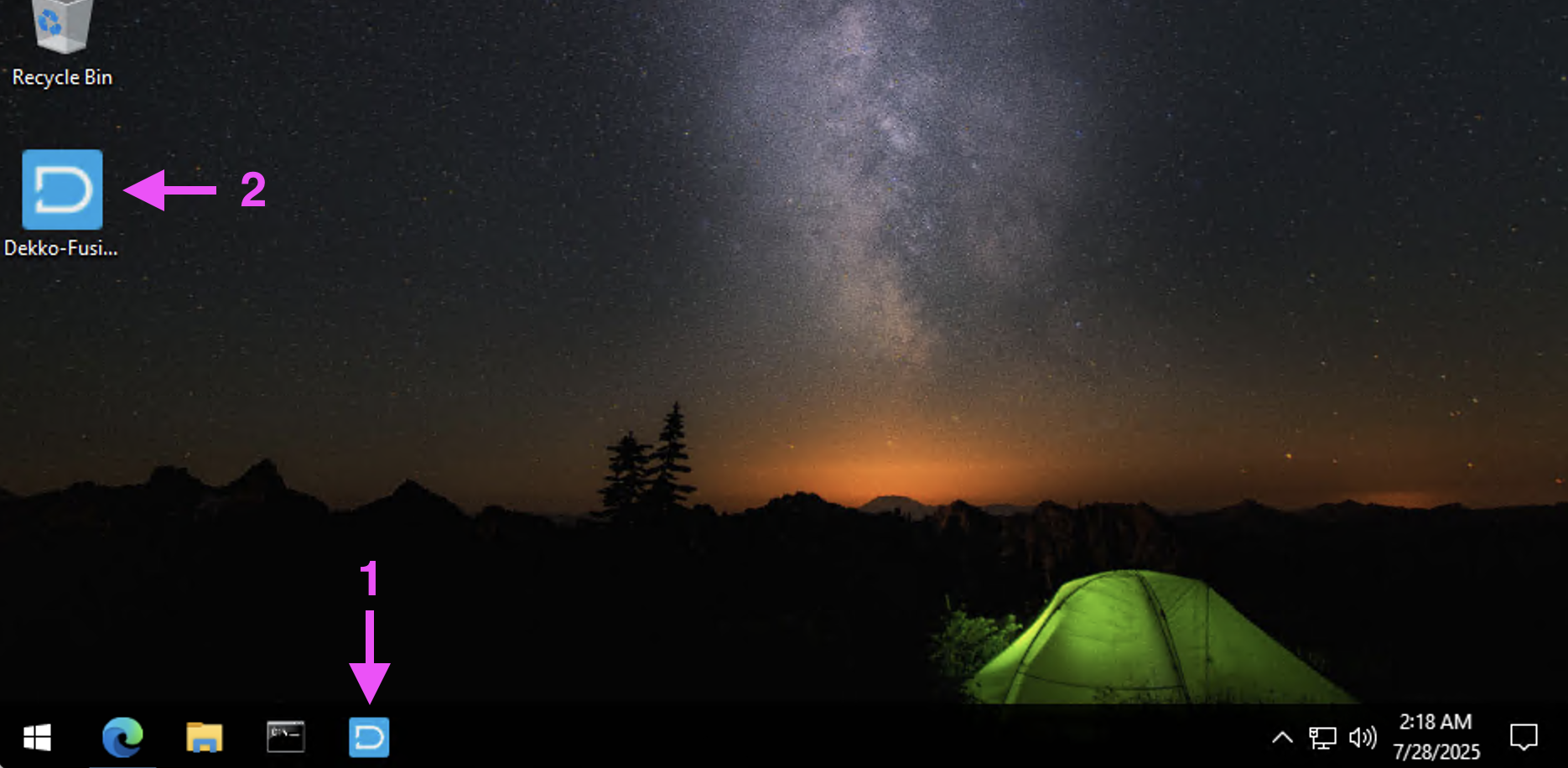
Open DekkoDrive by single-clicking the task bar icon (1) or double-clicking the executable (2) if you put it on your desktop:
If you see a message that says DekkoDrive is already running, open it by double-clicking the menu tray icon:

If you can’t find the task bar or menu bar icons for DekkoDrive you can run it again by opening the executable where you saved it. If you’ve lost the executable you can search for it with the term dekko*.exe:
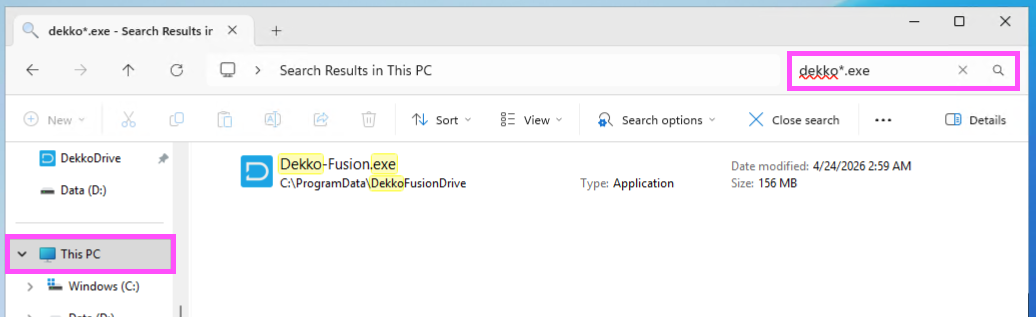
When you find the DekkoDrive executable you can drag it to your taskbar or desktop for quick access.
DekkoDrive Features
Please review the DekkoDrive: Interface and Filters and DekkoDrive: Uploading and Downloading articles to learn more about utilising DekkoDrive’s capabilities.
Close DekkoDrive
Close the application by right-clicking the menu tray icon and then left-clicking Exit:
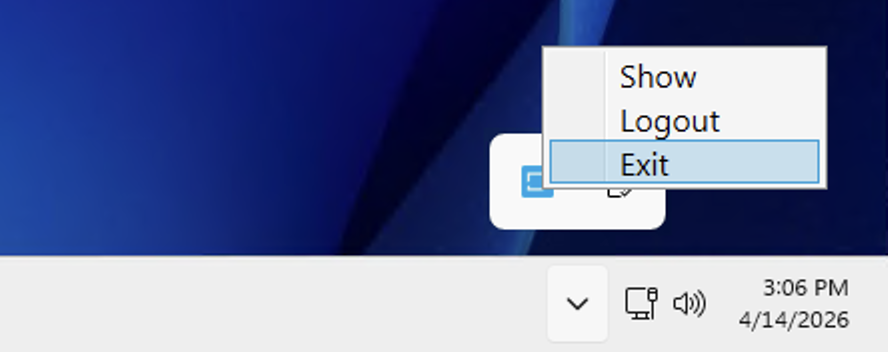
Closing the application will stop it from running in the background.
Log out of DekkoDrive
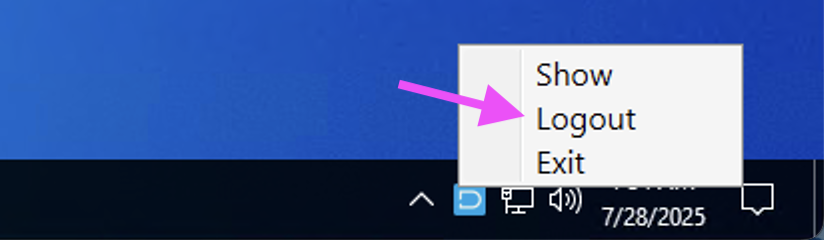
You can log out the application by right-clicking the menu tray icon and then left-clicking Logout:
Uninstalling DekkoDrive
Note: uninstalling DekkoDrive does not delete files or cases associated with your DekkoDEMS account.
Download and open the uninstaller file:
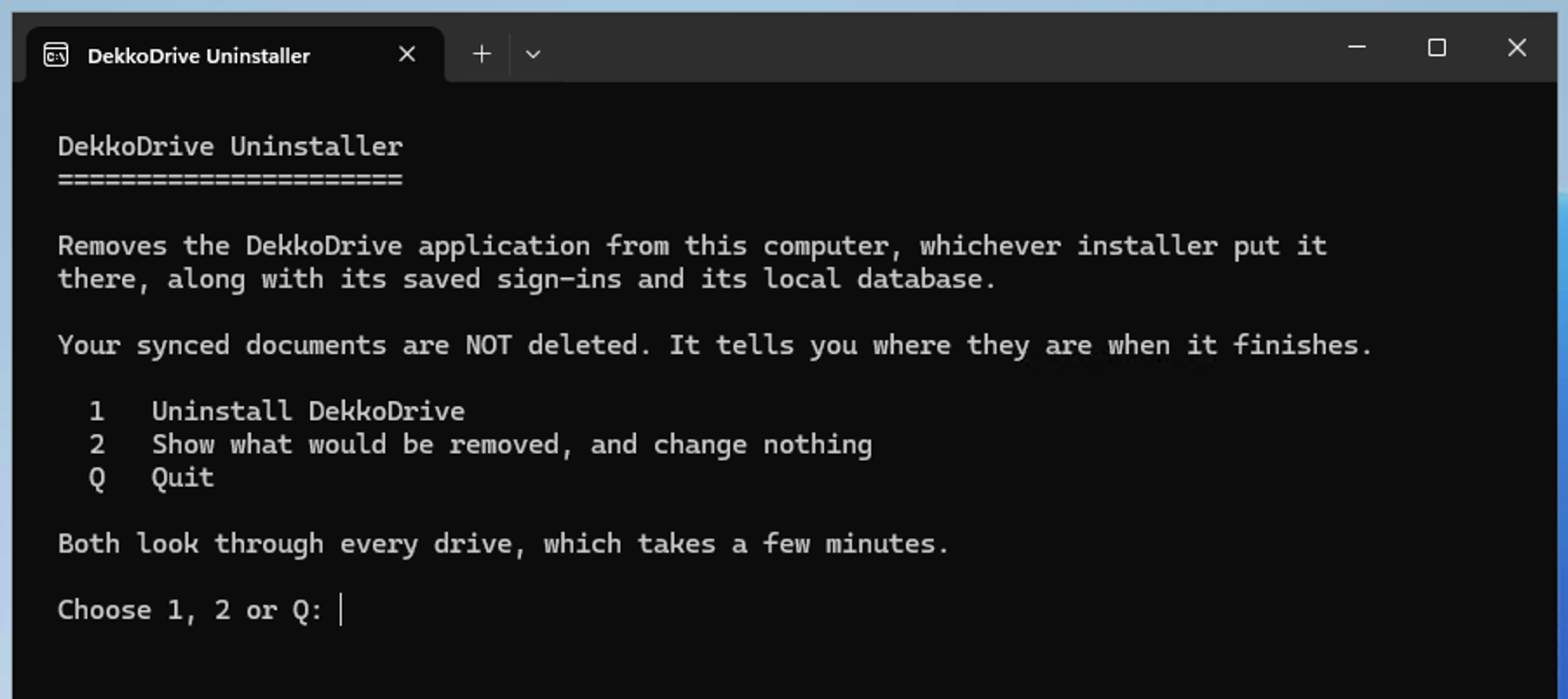
Type 1 and press enter. The uninstaller will search your computer for DekkoDrive installation files.
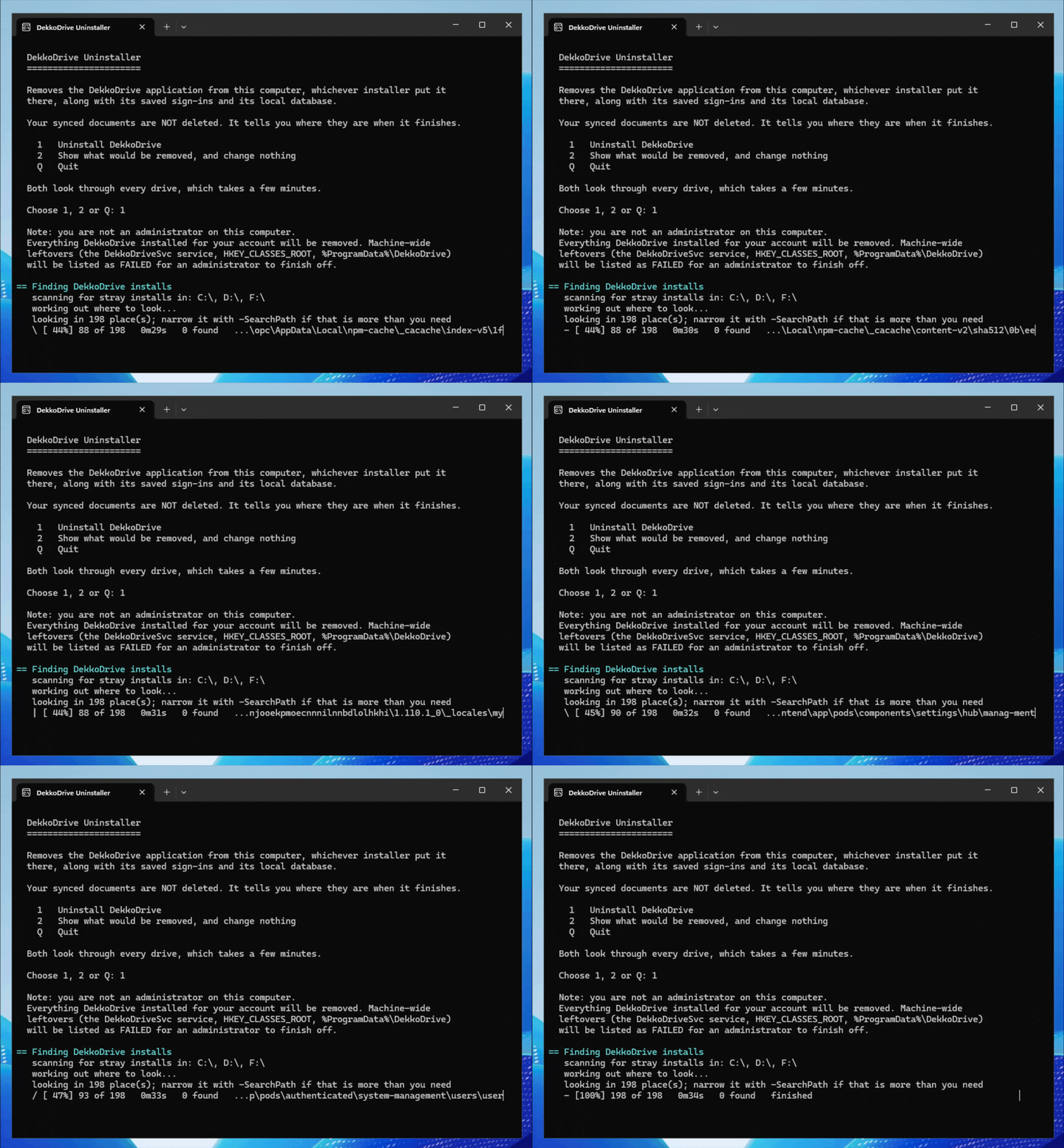
To confirm the uninstallation process, type delete and then press enter. A summary will be displayed.
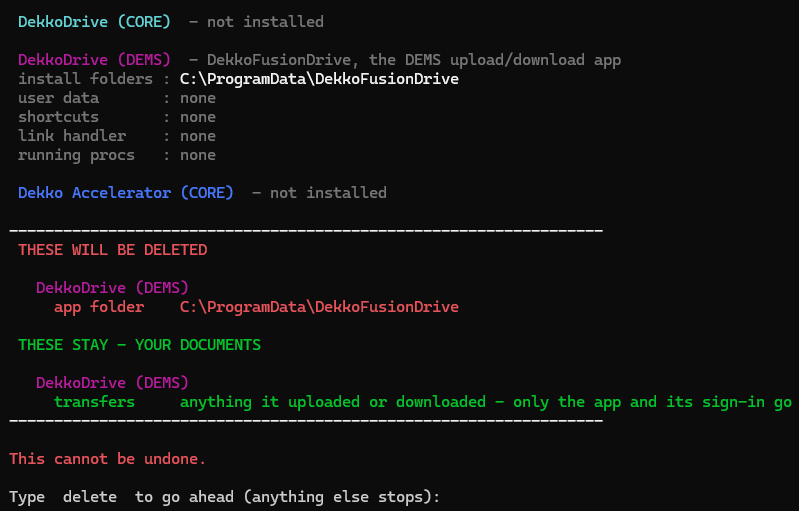
Close the uninstaller or type Q and press enter.
Update DekkoDrive
Updating DekkoDrive is a simple process of uninstalling the application as it is currently stored on your computer, then downloading and installing the new version.
Follow the steps the uninstall and install section of this article.