Case Notes
How to add and review notes added to a case.
Case notes can be added to and managed by case creators and shared users with “Manager” and “Full permissions”.
Adding notes to a case
There are two ways to add notes to a case.
Select the case and then click on Add notes:

If the case already has notes:
Click on the Notes tag in the Status column against the case and then click on Add note.

Open the case and then click on the note counter in the case summary:

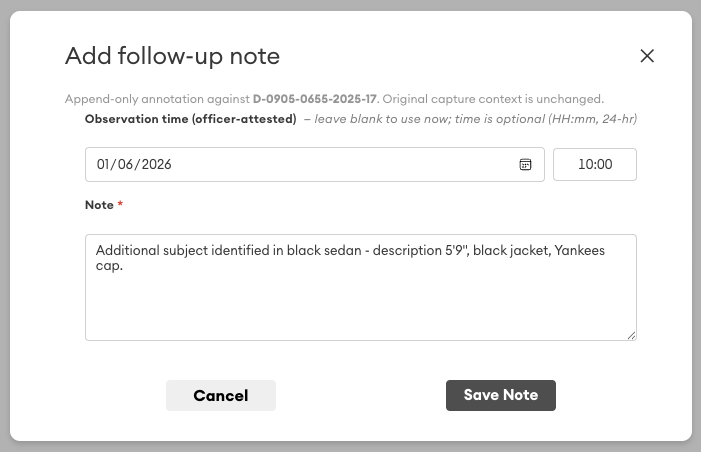
Add your note by entering a date, time (optional) and note body, then click Save Note:
Review and Export Case Notes
Click on the Notes tag in the Status column against the case:

Open the case and then click on the note counter in the case summary:

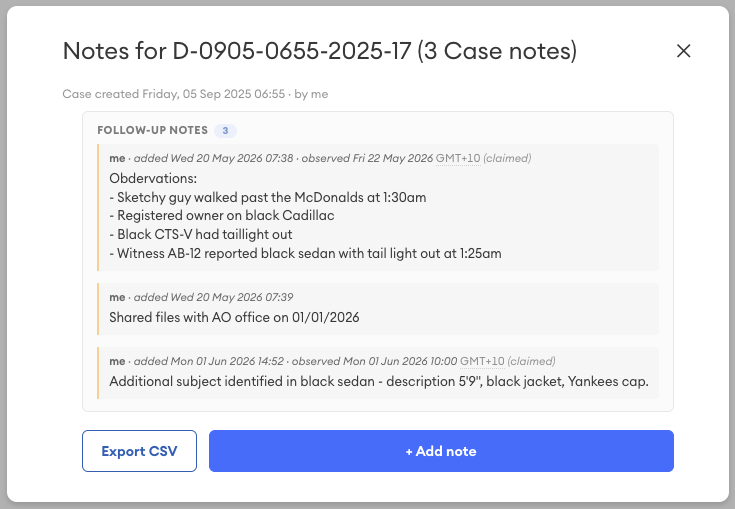
The case notes will be listed:
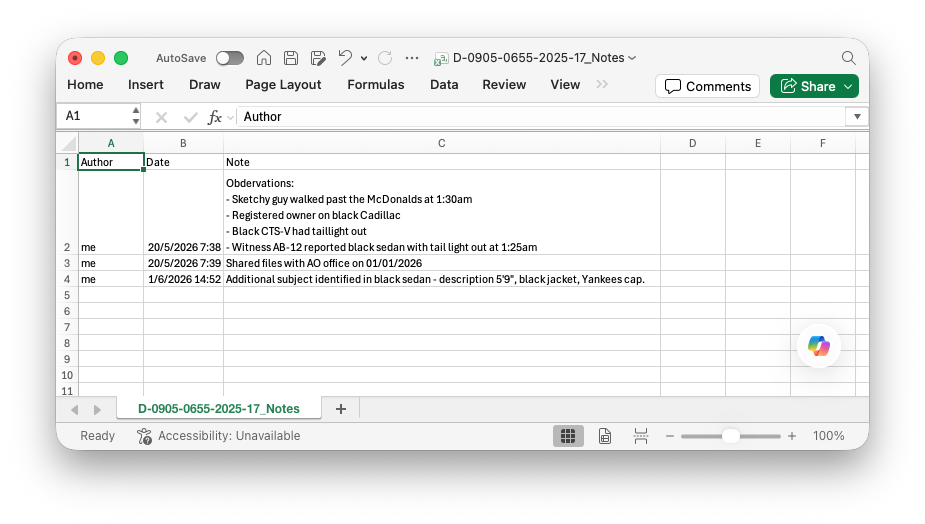
Click on Export CSV to create a CSV file containing a report for the case notes: